How OnTimer works
Simple by design. Powerful by default.
OnTimer does the work so you don't have to. Here's exactly how it turns your calendar into a punctuality machine.
What this fixes
The problem with most reminder systems is not that people forget about meetings. It's that they fail to switch modes at the right time — to stop what they're doing, wrap up, and leave. A quiet notification that fires and disappears doesn't create that switch.
OnTimer replaces passive notifications with real alarms — timed to when you need to leave, not when the meeting starts. Here's exactly how it works:
Download and open OnTimer
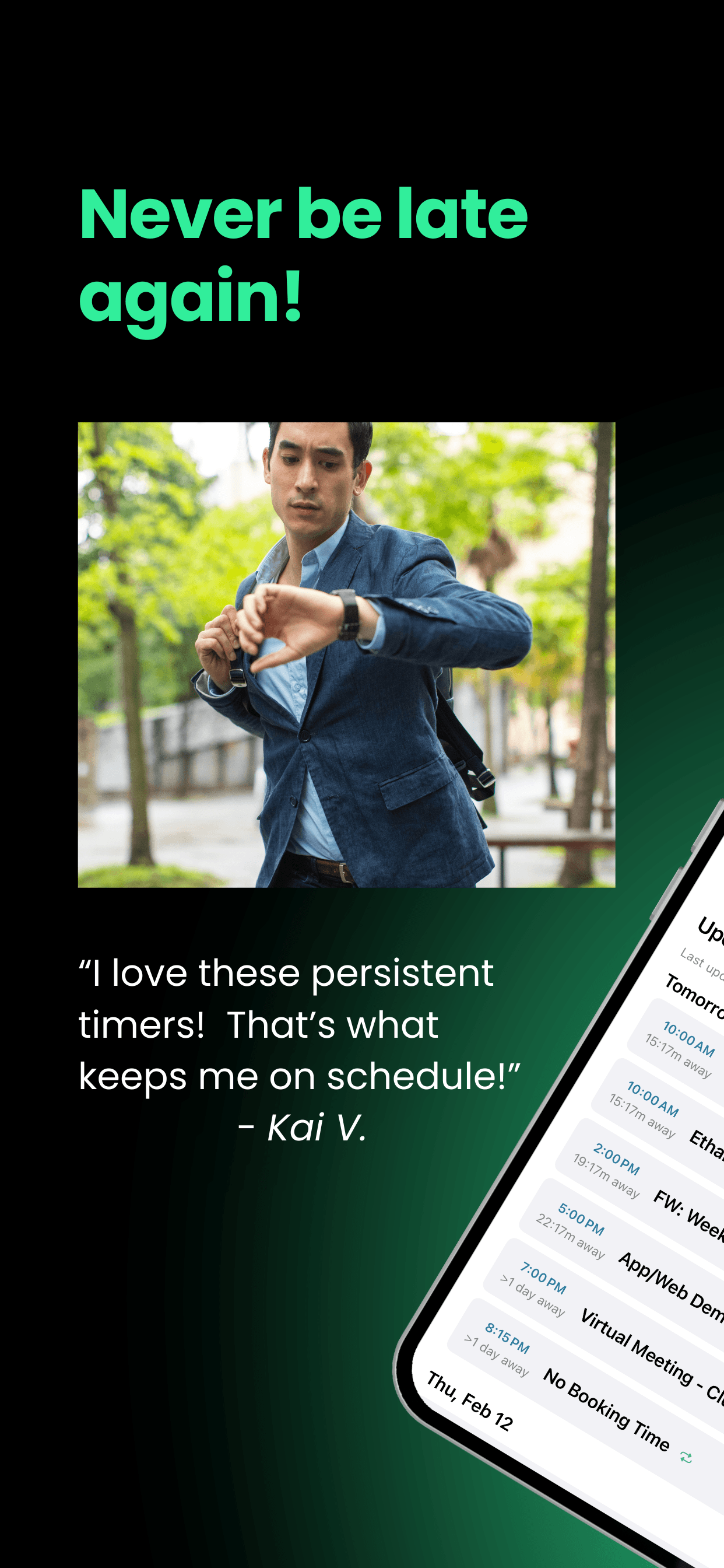
OnTimer is free on the App Store. Open it and you'll be guided through a quick one-time setup that takes less than two minutes. No account required — it works right off your device.
Connect your calendars
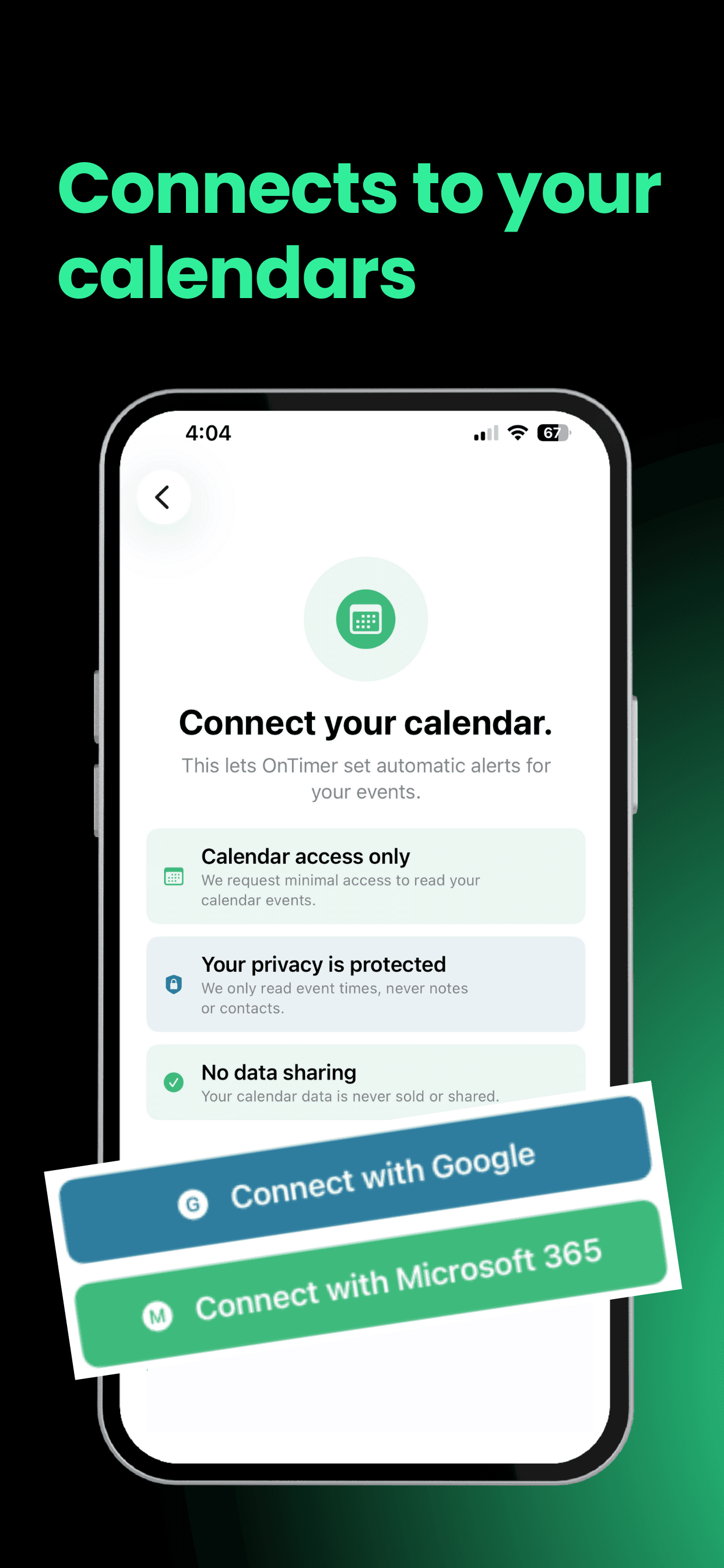
Connect Google Calendar, Apple Calendar, or Outlook Calendar. OnTimer uses read-only calendar access, never modifies your events, and never asks you to rebuild your schedule. It simply reads upcoming events to know when your alarms should fire.
Choose your lead time
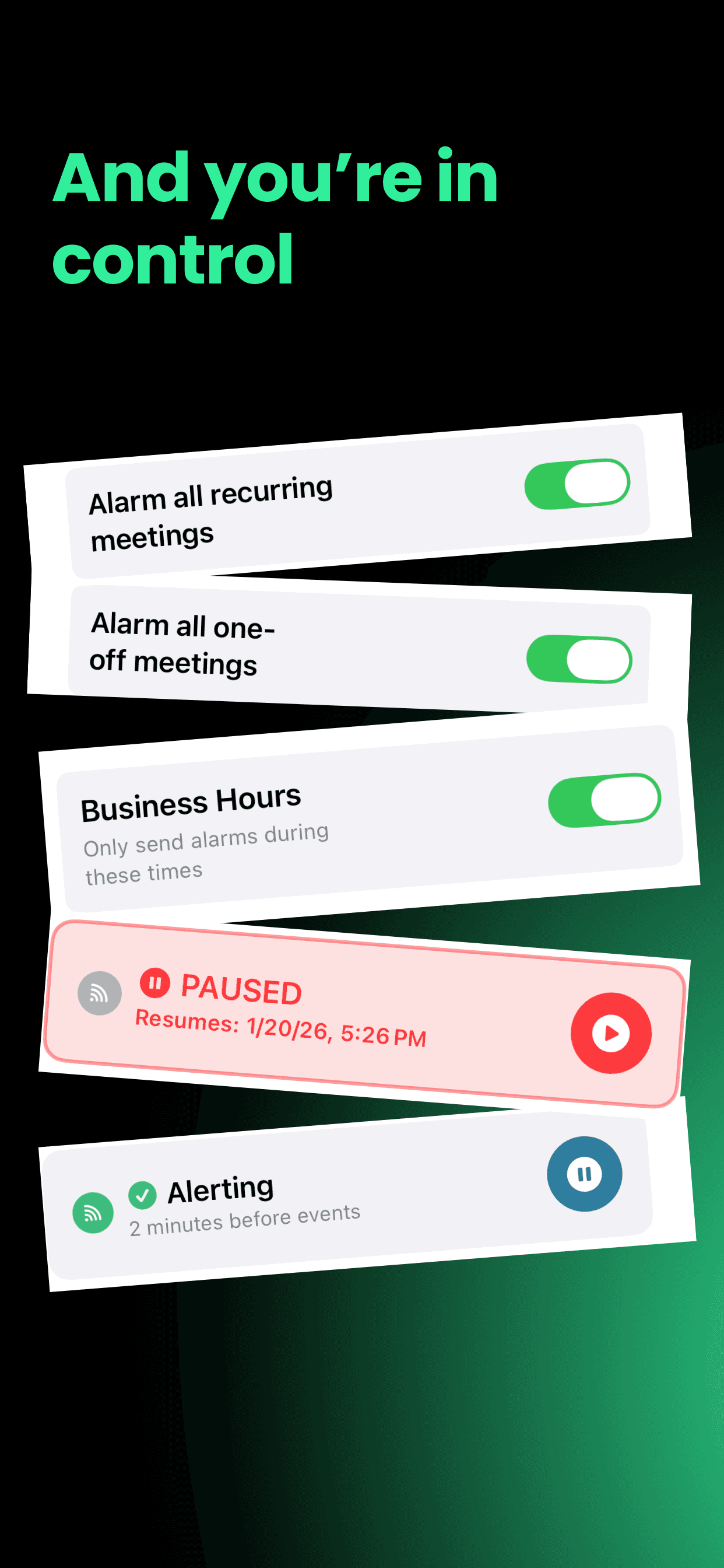
Tell OnTimer how much advance notice you need. Want 30 minutes before every meeting? Done. Prefer 15 minutes for shorter events and an hour for appointments across town? You can configure that too.
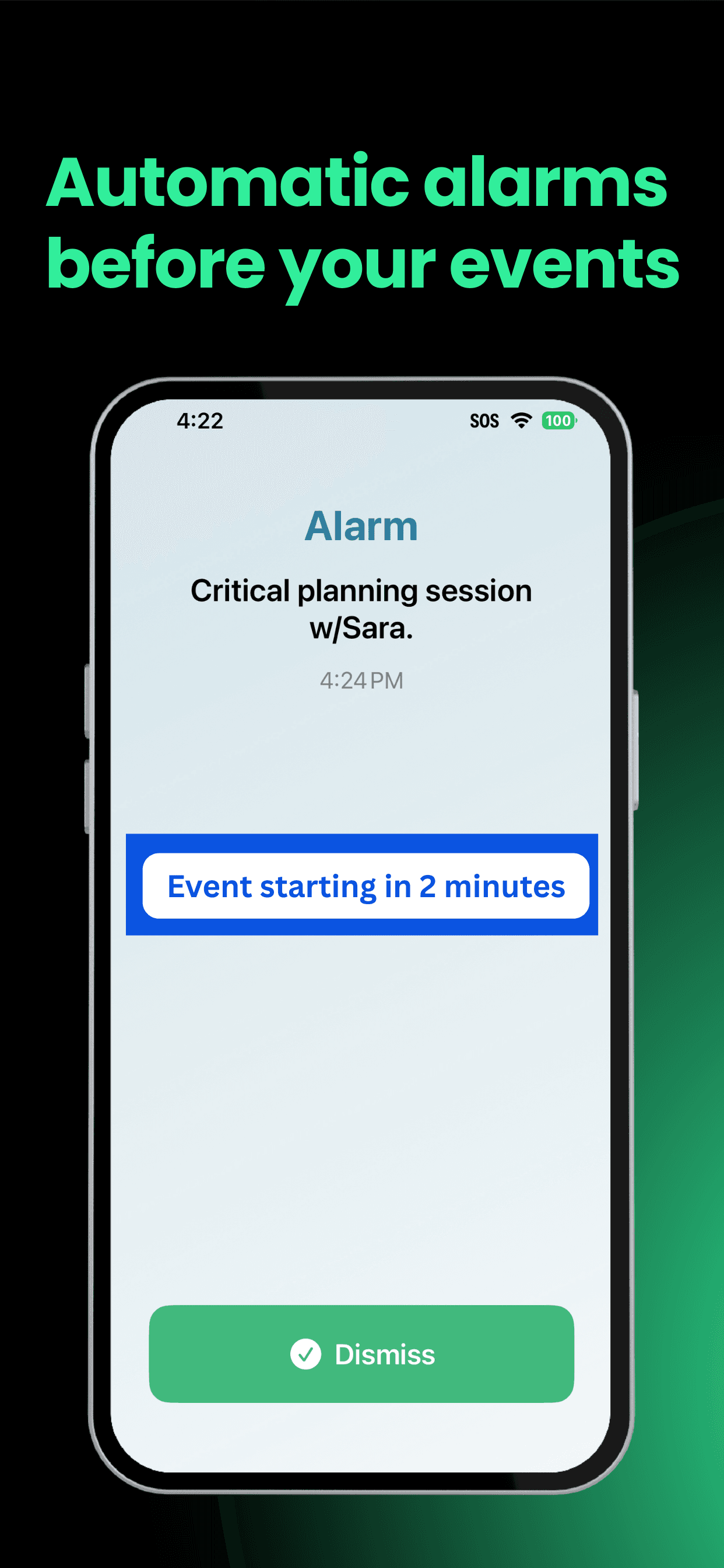
OnTimer creates your alarms
With your preferences set, OnTimer automatically generates alarms for every relevant event on your calendar. As events are added, changed, or cancelled, your alarms update automatically — with zero effort from you.
Alarm fires. You leave. You're on time.
When it's time to go, OnTimer fires a clear, can't-miss alert with all the event details. You know exactly where you're going, when you're going, and that you're going to make it. Breathe. You've got this.
Still have questions?
Check out our FAQ for answers to the most common questions about OnTimer.