Google Calendar · Apple Calendar · Outlook Calendar
Why Calendar Notifications Fail
(And What Actually Works)
You set the reminder. You might have even seen it. You still missed the meeting. You're not imagining it — this is how calendar notifications are designed to behave. Here's why the design fails you, and what to use instead.
Works with Google Calendar · Apple Calendar · Outlook Calendar
Direct Answer
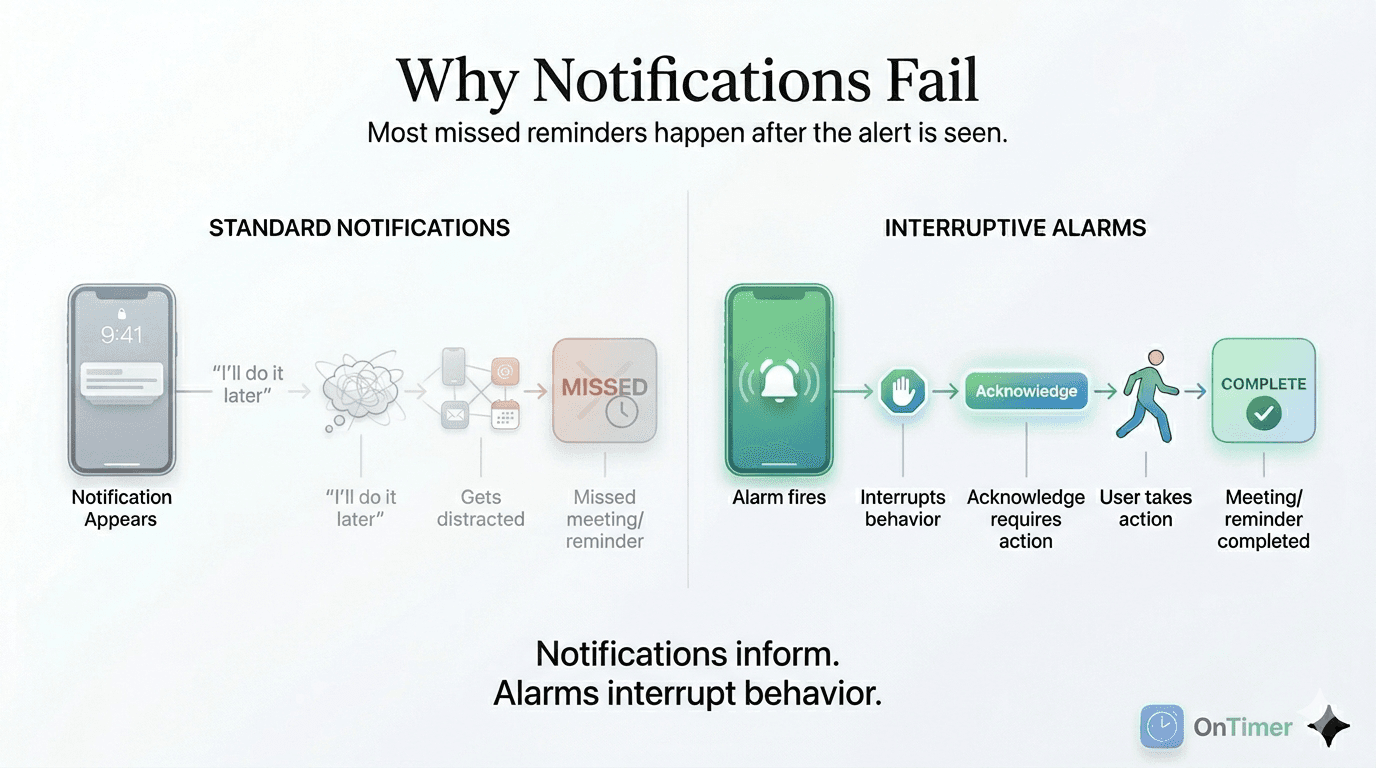
Calendar notifications fail because they are passive. A notification requires you to see it, read it, and act on it at exactly the right moment — the instant it appears. In the real world, that rarely happens. You might dismiss it without thinking, miss it during a focused session, or see it and tell yourself you'll act in a minute. The notification has already disappeared. Nothing interrupts you again.
Most reminder failures happen after the notification is seen — not before. The graphic below maps the behavioral gap that passive alerts cannot close.
You Saw the Reminder. You Still Missed It.
Most people assume that a missed reminder means a broken reminder. The notification never fired, the settings were wrong, the app had a bug. These things do happen.
But more often, the reminder worked perfectly. The notification appeared. You saw it — or half-saw it — while you were in the middle of something else. You registered the meeting time. You made a mental note to leave in five minutes. And then you didn't, because the notification was gone, nothing else interrupted you, and your attention returned to whatever had it before.
This isn't forgetting. It's the system failing to account for the gap between knowing and acting. Notifications are designed to inform you. They are not designed to change your behavior.
Notification Fatigue: When Your Brain Stops Listening
The average smartphone delivers dozens of alerts per day — messages, news, social media, email, app updates, promotional offers. Your brain processes all of them through the same channel: a banner that appears at the top of your screen for a few seconds.
Over time, the brain habituates. It learns that most banner notifications require no immediate action. It begins classifying them as background noise — registering their presence without fully processing their content.
A calendar reminder looks identical to a news alert or a social media like. It appears in the same place, in the same format, with the same visual weight. Your brain has been trained to treat it accordingly.
This is alert fatigue — and it makes calendar notifications inherently unreliable for time-critical events, even when they fire correctly and you technically “see” them.
Lock Screen Blindness
Your lock screen lights up. You pick up your phone. What you see instead of a message is a calendar notification about a meeting in fifteen minutes.
You process it the same way you process every other lock screen notification that wasn't urgent: you acknowledge it, set the phone back down, and continue what you were doing. Fifteen minutes later, you're still at your desk.
Lock screen blindness isn't carelessness. It's an efficient filtering mechanism that works against you when the notification genuinely requires immediate action. Your brain optimizes for speed — “I'll deal with it in a minute” is faster than stopping right now.
The “I'll Do It in a Minute” Trap
This is the most common — and most dangerous — way reminders fail. You see the notification. You consciously read it. You understand you have a meeting soon. You decide to finish the sentence you're writing, or the task you're in the middle of, before getting up.
The notification disappears. No second alert fires. You return to your task with full focus. Somewhere in the next fifteen minutes, the meeting starts without you.
This is active deferral — you made a conscious decision to act later, and the system had no mechanism to follow through. A notification cannot reschedule itself. Once dismissed or faded, it is gone.
The only alert that prevents active deferral is one that can't be passively ignored — that continues demanding a response until you make an active decision to dismiss it.
Why Standard Reminders Are Passive by Design
Google Calendar, Apple Calendar, and Outlook Calendar use the operating system's standard notification pipeline. This pipeline was designed to be low-interruption — to inform users without disrupting what they're doing.
That design philosophy is appropriate for most app notifications. If a news app fires a banner while you're in a meeting, you want it to fade quietly. If a social media app sends a like notification, you want to register it and move on.
Calendar events are different. A meeting has a hard start time. The cost of ignoring the notification isn't mild inconvenience — it's a missed meeting, a missed flight, a professional embarrassment, or an appointment you cannot reschedule.
But the notification doesn't know any of this. It fires once, waits a few seconds, and disappears — whether or not you acted, whether or not you even noticed it. The system treats your calendar event the same way it treats every other alert.
Why Alarms Work Differently
Alarms don't ask for your attention. They take it.
A phone alarm occupies your full screen, plays audio, and continues until you explicitly dismiss it. It cannot disappear passively — doing nothing has the same result as when your morning alarm goes off. The sound keeps going.
You don't wake up in the morning because you happened to notice a notification about sleeping. You wake up because something won't stop demanding acknowledgment. That forced interaction is what makes alarms effective for time-critical events.
The same principle applies to calendar events. A persistent alarm before a meeting requires you to make an active decision to dismiss it before it stops. That decision moment is where the behavioral change happens.
Notifications vs Alarms: The Real Difference
The distinction isn't about volume or visibility. It's about whether a response is required.
What Persistent Calendar Alarms Are
A persistent alarm stays on your screen until you respond to it. Unlike a notification banner that disappears after a few seconds, a persistent alarm:
- ✓Occupies your full screen — not just a banner at the top
- ✓Plays audio continuously, not just a brief chime
- ✓Requires an explicit dismiss action before it stops
- ✓Cannot be accidentally cleared by swiping away notification center
- ✓Continues firing even if your phone is face-down or screen is off
For calendar events — meetings, flights, medication schedules, appointments — this is the alert type that actually accounts for how people behave when they're focused on something else.
How OnTimer Replaces Failing Notifications
OnTimer is a calendar alarm app for iPhone. It connects to Google Calendar, Apple Calendar, and Outlook Calendar and, instead of relying on the standard notification pipeline, fires a persistent alarm before each event — the same type of alert as your morning alarm.
Automatic — no setup per event
OnTimer reads your calendar and fires alarms automatically. You don't configure reminders individually. Connect your calendar and every upcoming event gets an alarm.
Persistent — stays on screen until dismissed
The alarm doesn't disappear after 4 seconds. It stays on your screen and continues alerting until you actively dismiss it.
Adjustable lead time
Set how far in advance the alarm fires — 5 minutes before, 15 minutes, 30 minutes. Adjust based on your commute or preparation time.
Works with Google Calendar, Apple Calendar, and Outlook Calendar
Connect Google Calendar, Apple Calendar, and Outlook Calendar — including multiple calendars. OnTimer consolidates them into one alarm stream.
Free · iPhone · Google Calendar · Apple Calendar · Outlook Calendar
Stop relying on notifications for time-critical events.
OnTimer turns your calendar into persistent alarms that stay until you respond.
Frequently Asked Questions
Why do my calendar notifications keep failing?▾
Calendar notifications fail for two reasons: system-level issues (Focus mode blocking alerts, permissions reset by an OS update, background restrictions) and behavioral issues (notifications disappear before you act, you see them and defer, or attention fatigue makes you stop registering them). System issues are fixable. Behavioral issues require a different alert type — an alarm, not a notification.
Why did I miss a meeting even though I set a reminder?▾
Because a notification only has to inform you — it doesn't have to make you act. You can see a calendar notification, consciously register the meeting time, decide to finish what you're doing first, and then look up five minutes later to find the notification gone and the meeting started. The reminder worked exactly as designed. The design just wasn't built to handle the gap between knowing and acting.
Why are Google Calendar notifications unreliable on iPhone?▾
Google Calendar notifications on iPhone pass through Apple's notification delivery system, which can be affected by Focus mode, background app restrictions, and OS-level delivery delays. Additionally, the notifications themselves are passive — they appear and disappear regardless of whether you've acted on them. Even when delivered perfectly, they can be missed.
What's the difference between a calendar notification and an alarm?▾
A notification informs. An alarm interrupts. A calendar notification appears on your screen for a few seconds and disappears whether or not you act on it. A calendar alarm — like the one OnTimer fires — occupies your full screen, plays audio, and continues until you explicitly dismiss it. It requires an active decision.
What should I use instead of calendar notifications for important events?▾
Use persistent alarms instead of notifications for any time-critical event. OnTimer connects to Google Calendar, Apple Calendar, and Outlook Calendar and fires a persistent alarm before each event — it stays on your screen and continues alerting until you respond. Unlike a passive notification, it requires acknowledgment.
Why does notification fatigue cause missed reminders?▾
The average smartphone delivers dozens of notifications per day. Over time, the brain habituates — it classifies banner alerts as low-priority background noise and stops fully processing them. A calendar reminder looks identical to a news alert or social media notification. After enough exposure, your brain stops treating it as requiring immediate action.
How can I make calendar reminders harder to miss on iPhone?▾
Not with standard calendar notifications — they're passive by design. The closest equivalent to an impossible-to-miss alert is an alarm: it continues making noise until you explicitly dismiss it. OnTimer turns Google Calendar, Apple Calendar, and Outlook Calendar events into persistent alarms that fire automatically before each event and stay on screen until dismissed.
Related Guides
- Calendar Notifications Not Working? 8 Fixes for iPhone and Google Calendar →
- Why Notifications Fail (And Persistent Alarms Work Better) →
- Calendar Notifications vs Alarms: Why Most Reminders Fail →
- How to Make Calendar Reminders Persistent →
- The Last 5 Minutes Problem: Why Notifications Fail at Critical Moments →
- How to Turn Calendar Events Into Real Alarms →
- Why Calendar Reminders Fail →
- ADHD Time Blindness Tools →
- Best Calendar Alarm App for iPhone Calendars →
Notifications inform.
Alarms interrupt.
Download OnTimer and replace passive calendar notifications with persistent alarms.
Free · Google Calendar · Apple Calendar · Outlook Calendar